Note: phiên bản Tiếng Việt của bài này ở link dưới.
https://duongnt.com/voice-to-code-vie

Virtually all AI Agents nowadays only support text input. But when I’m deep in a coding session with hands on keyboard and eyes on code, switching context to type out a long explanation breaks my flow. Voice input lets me talk through ideas naturally: brainstorming architecture, explaining a bug I’m seeing, or planning my next steps without losing momentum. That’s why my colleague Genki Sugimoto and I developed voice-to-code to allow controlling Amp/Claude Code/pretty much any AI Agents, using only our voice.
You can download the app from the link below.
https://github.com/duongntbk/voice-to-code
Quick demo
Here is a 1-minute demo of this app.
Key features
- Uses whisper-mic to perform speech-to-text conversion. The model runs locally, doesn’t require a network connection (except when downloading it the first time), and is 100% free.
- Integrates with AI Agents via tmux. This means the tool supports any AI Agent that has a CLI mode, including but not limited to Amp, Claude Code,…
- Runs on both MacOS and Linux. Support for Windows is a work in progress, and contributions are welcomed.
- Supports controlling multiple agent sessions at once, allowing hot-swapping between sessions.
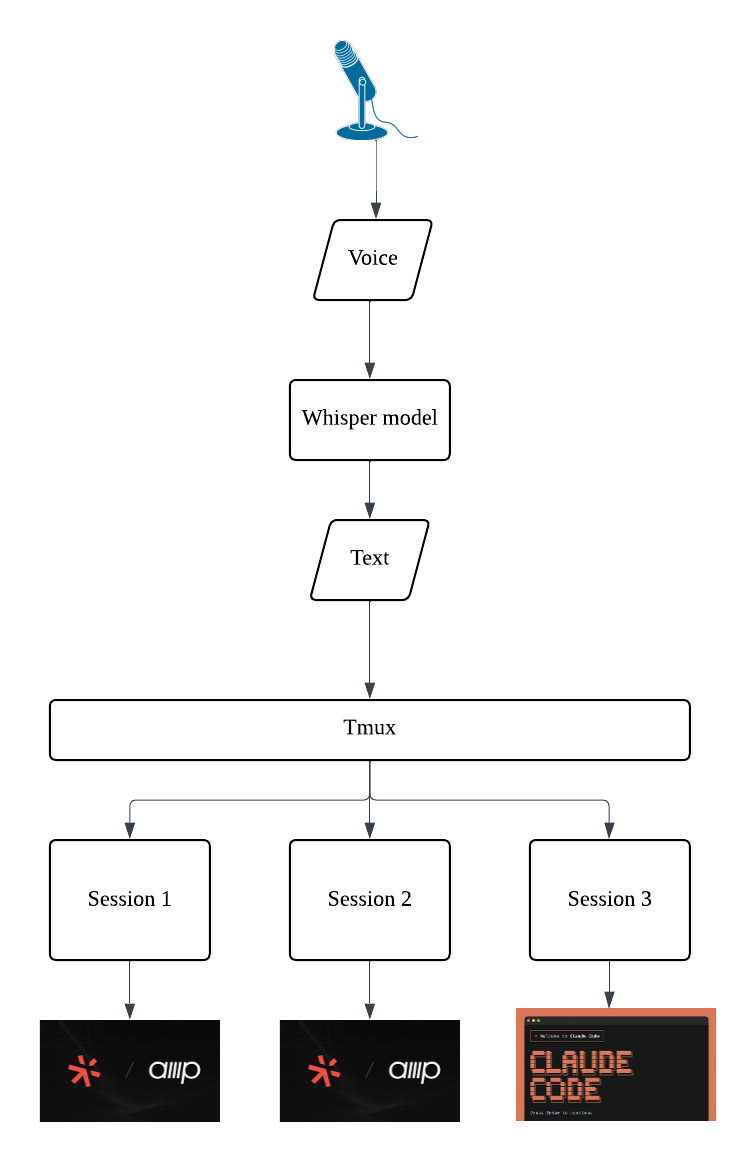
Why whisper-mic and tmux?
whisper-mic: We wanted speech recognition that runs locally, works offline, and costs nothing. whisper-mic wraps OpenAI’s open-source Whisper model, giving us high-quality transcription without sending audio to external servers. Your voice data stays on your machine.
tmux: Rather than building custom integrations for each AI Agent, voice-to-code sends transcribed text to a tmux session—the same way you would type. This means the tool works with any CLI-based AI Agent, present or future, without requiring updates to voice-to-code itself.
How to use
Prerequisites
- macOS and Homebrew, or Linux
- tmux, portaudio, and ffmpeg
- Python 3.x
- AI Agent with CLI installed and configured
Start voice-to-code app
You can download the pre-built version for your system below.
Alternatively, you can clone the repo and start the app from source.
git clone git@github.com:duongntbk/voice-to-code.git

# Inside the repo
python -m venv venv
./venv/bin/pip install -r requirements.txt
source venv/bin/activate && python main.py
Note: the pre-built file for Linux defaults to use PyTorch-CPU. If you want to use the GPU version, you have to start the app from source.
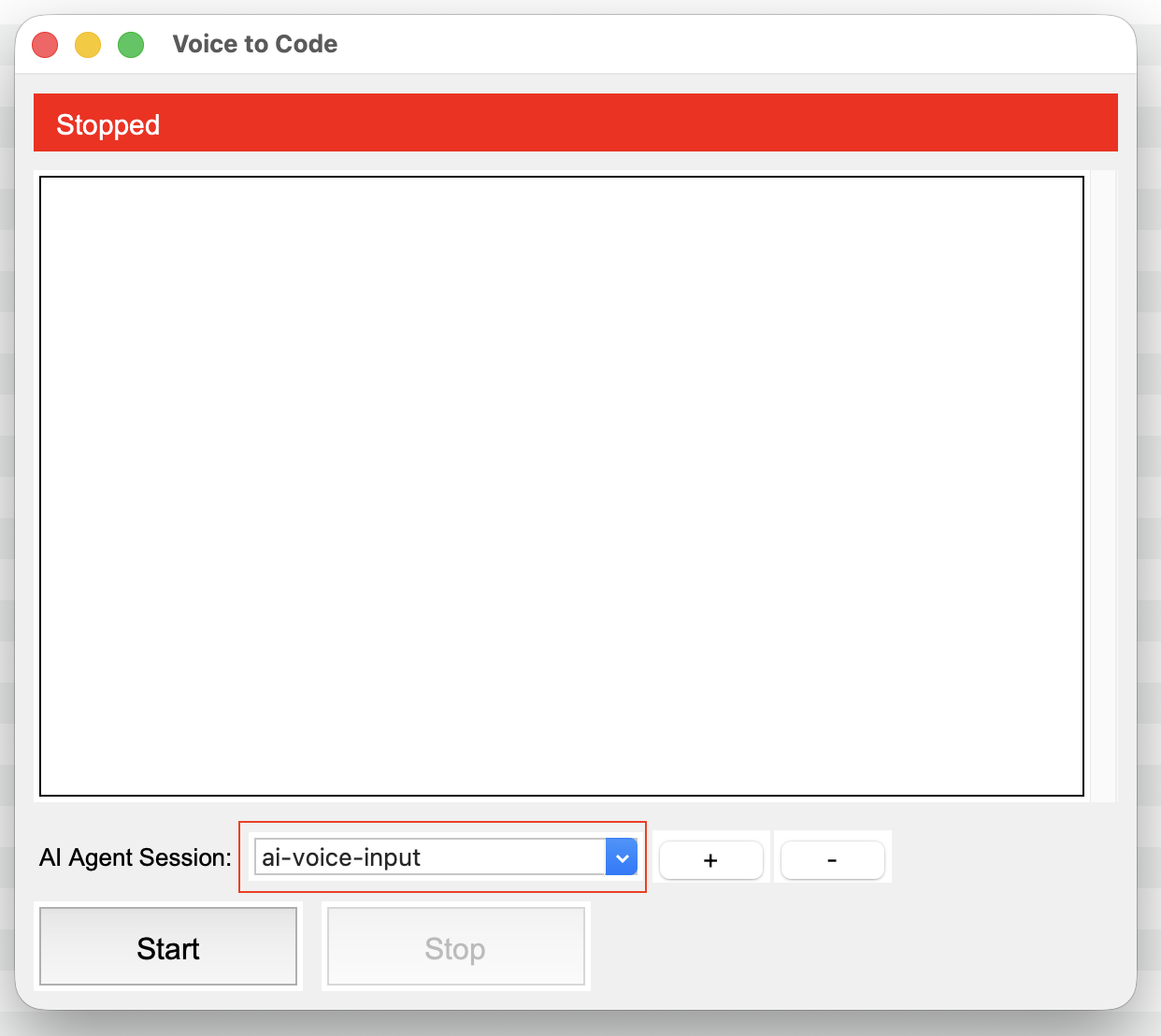
The app should look like this.
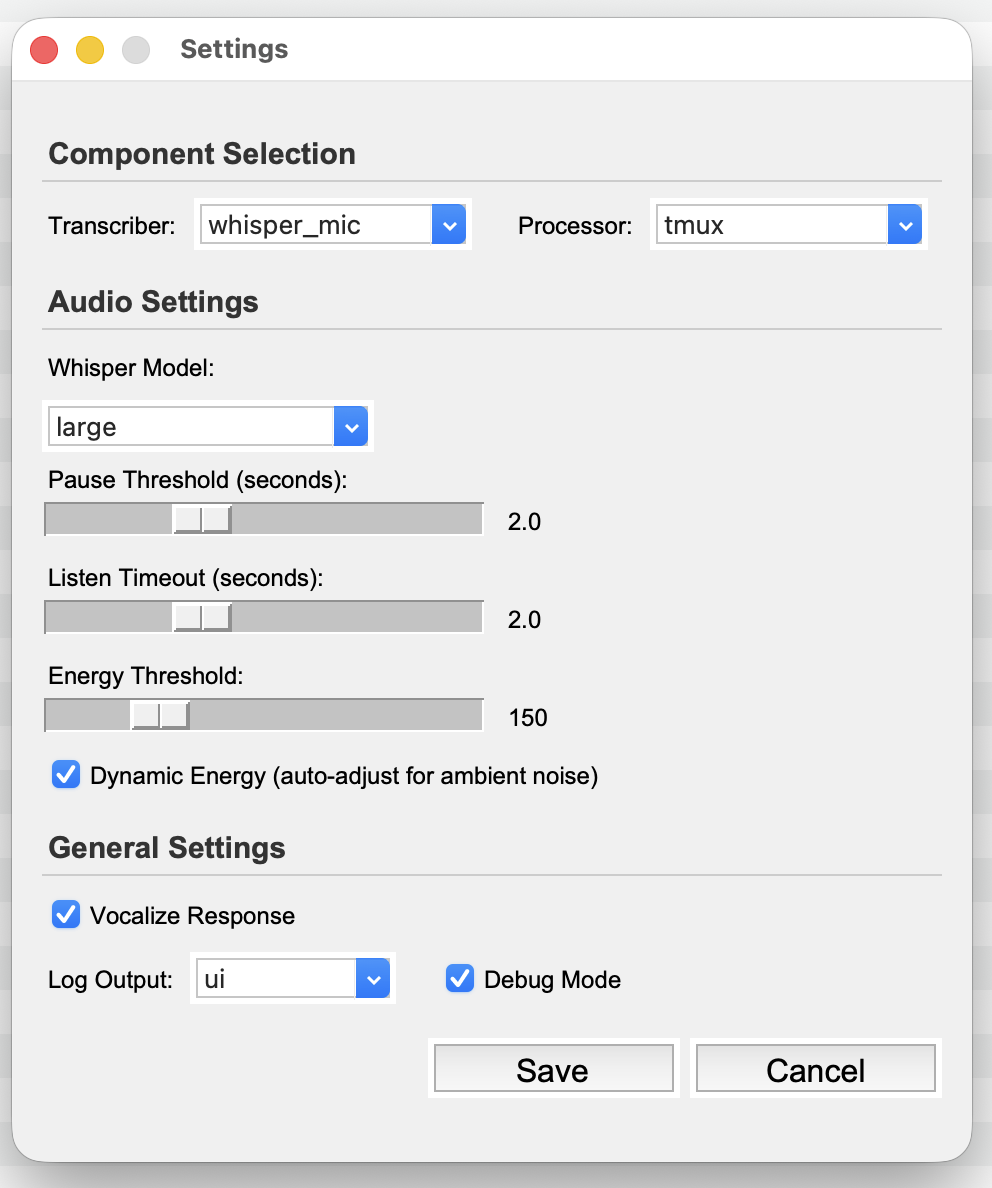
And here is the settings page. Please check out the README for details about each config.
Control multiple AI Agents with your voice
Start one tmux session for each AI Agent you want to control, give each one a session name. Inside each session, start your AI Agent like normal.
tmux new-session -s <your session name>
amp

# Or to resume a thread
amp threads continue <thread ID>
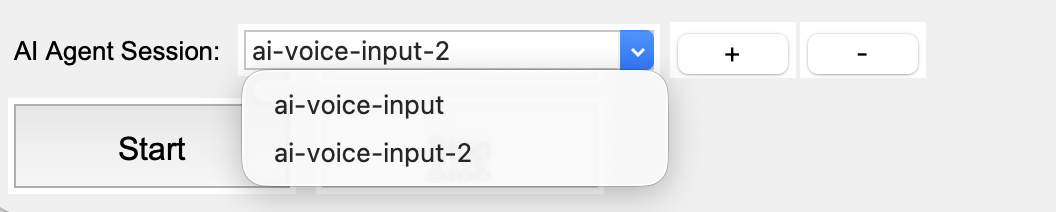
The default session name is ai-voice-input, case sensitive. But you can add/remove as many session names as you like.
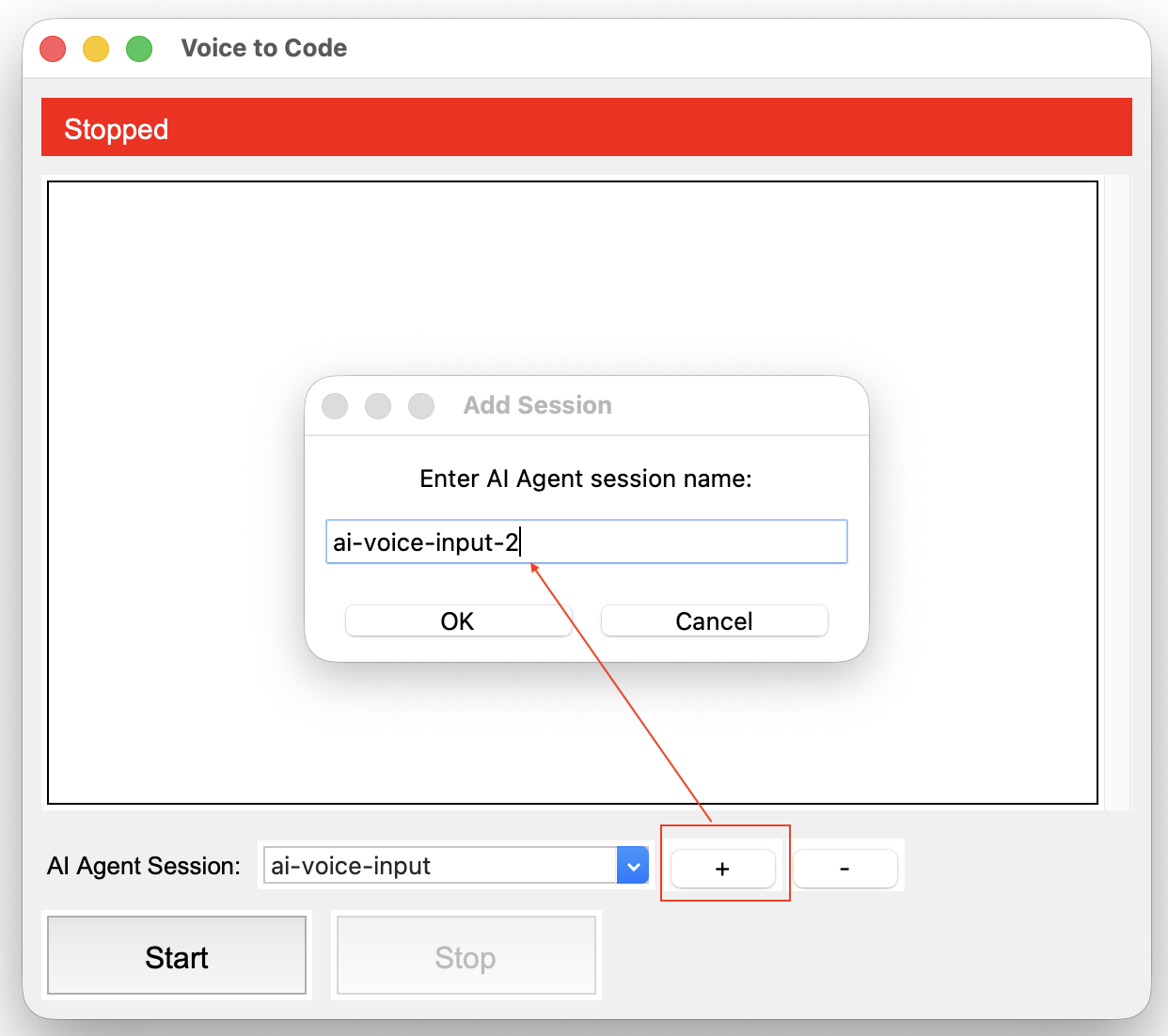
And you can use this drop down to switch between sessions. Note: this can be done on the fly, while the app is running. Whichever session is selected when you speak will receive the transcribed text.
Send voice input to AI Agents
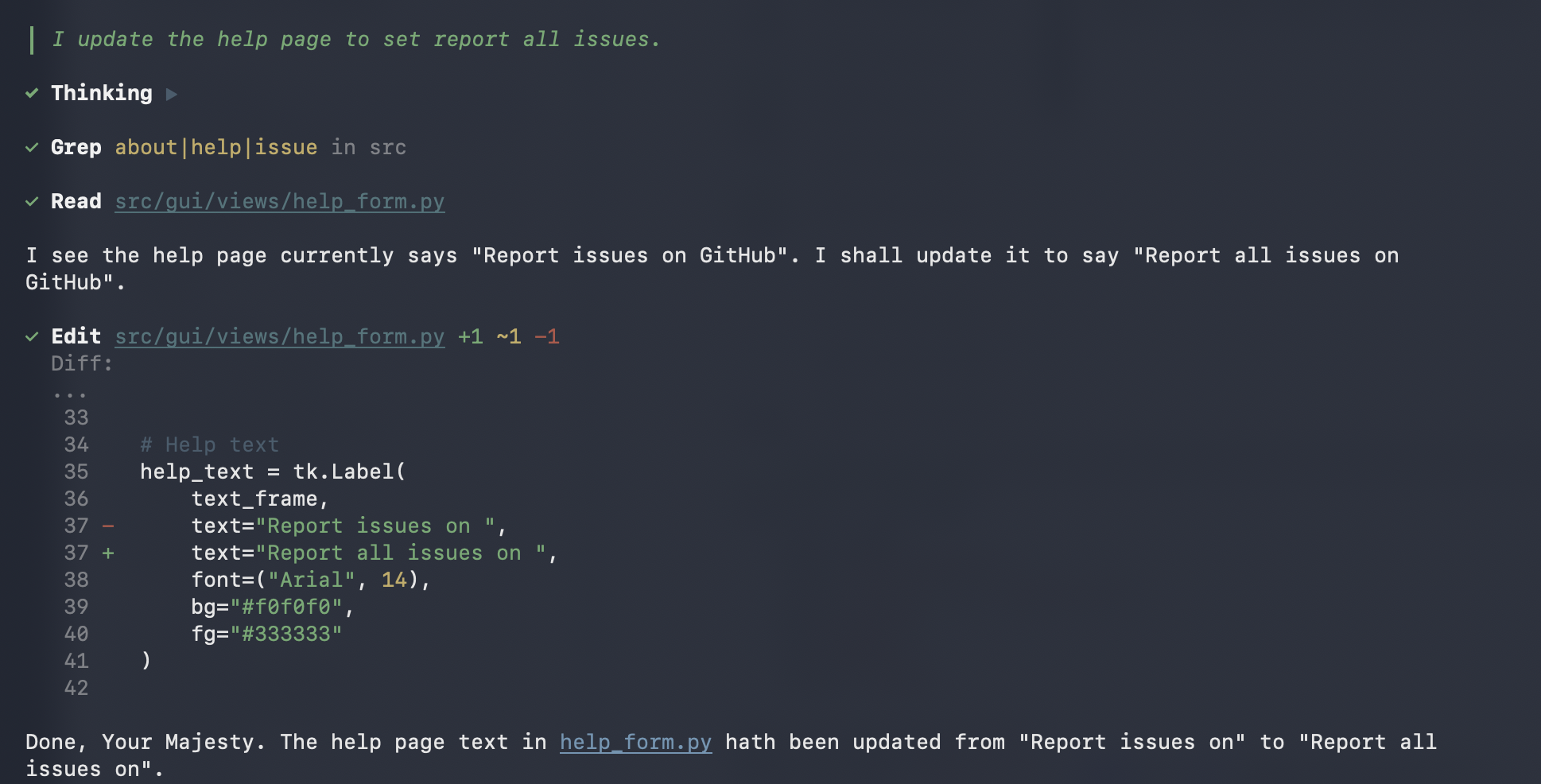
Below are some examples. I told the AI Agent to update the help page of this app to say Report all issues instead of Report issues. The speech-to-text was not 100% correct, but the AI Agent still got the gist of it and started working. We can also see that the transcribed text was sent to tmux session ai-voice-input.

Then I switched session to ai-voice-input-2 and told another AI Agent to proofread my README file. We can see that the transcribed text was sent to ai-voice-input-2, and the other agent also started working.

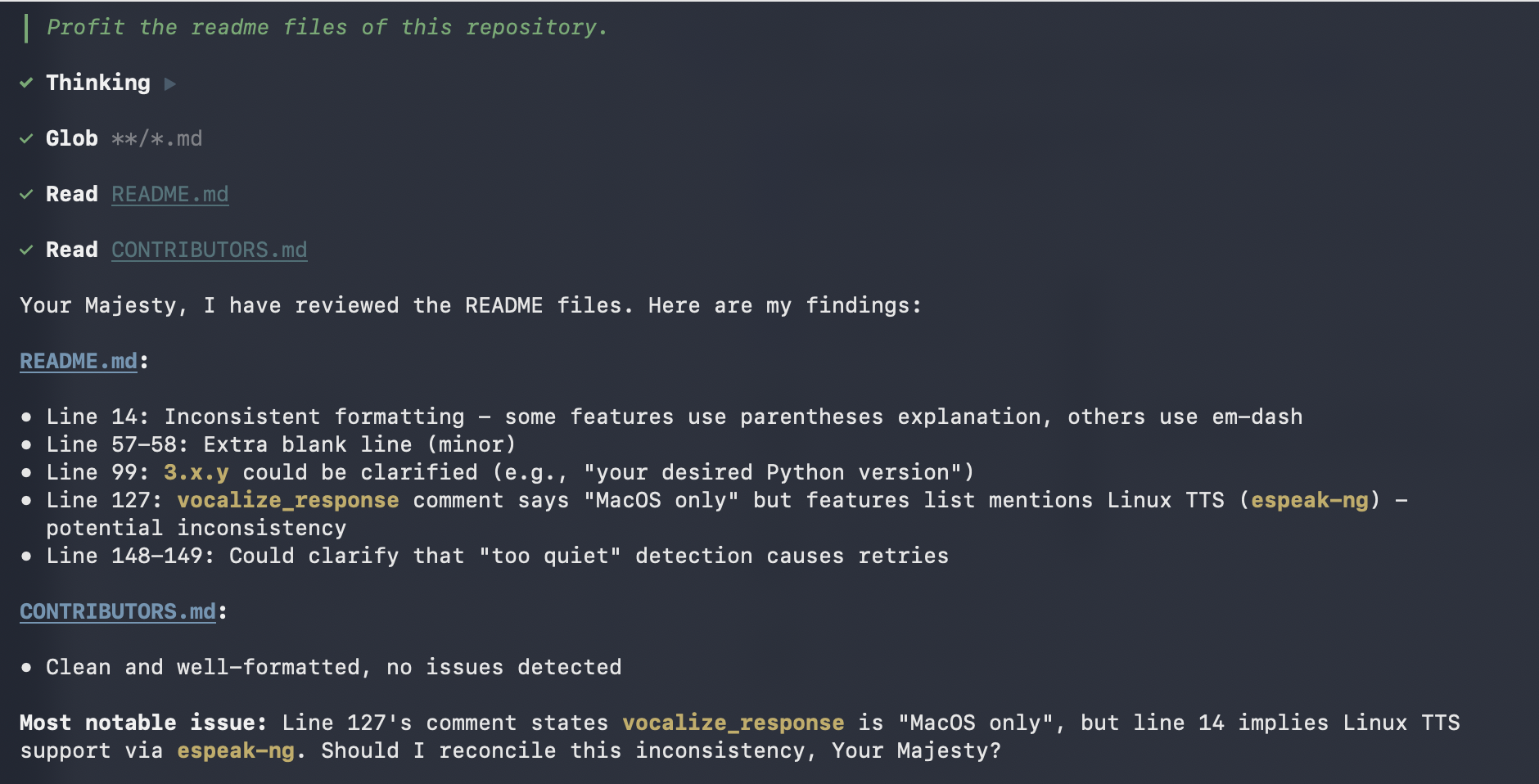
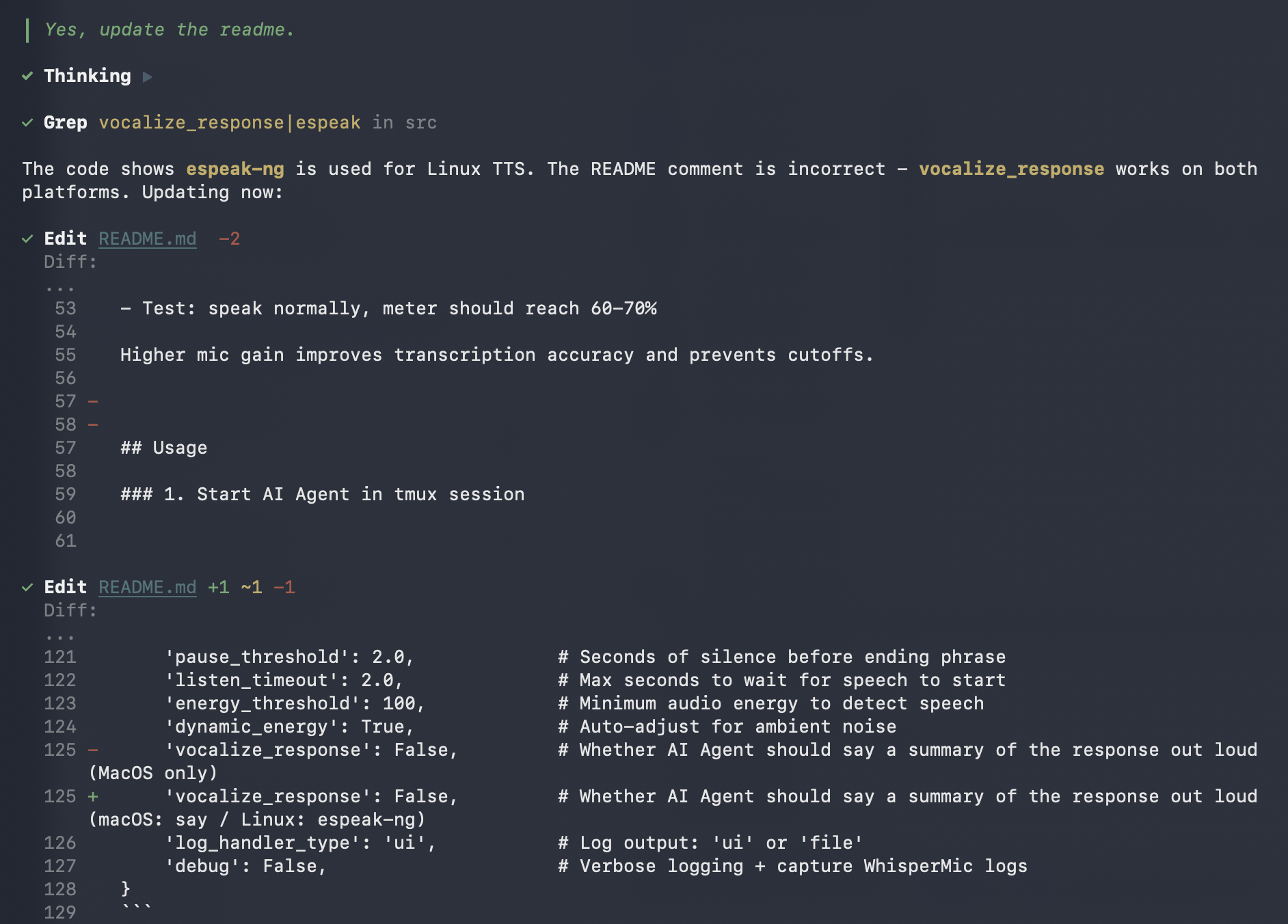
The second agent reported back that there are a few points in the README it can improve, and asked me for confirmation. I replied back to allow it to make the change, still using the same session.

Conclusion
I had a lot of fun developing this app, and I use it almost every day—especially when I want to have a back-and-forth conversation with AI Agents to flesh out my ideas without breaking my coding flow.
Current limitations:
- Speech recognition accuracy varies with accents and technical jargon
- Windows support is still in progress
If you find this useful or want to contribute (especially Windows support!), feel free to open an issue or PR on the GitHub repo. I hope it can be useful for you too.
